
Select iOS / macOS (Swift) or Windows (C#), choose a registered app origin, and generate that platform’s code. Have your developer integrate and test the fragment in the target app.
Before you begin
A registered app origin and access to the native app project are required. Have your platform developer review the generated fragment and test it on the target platform.
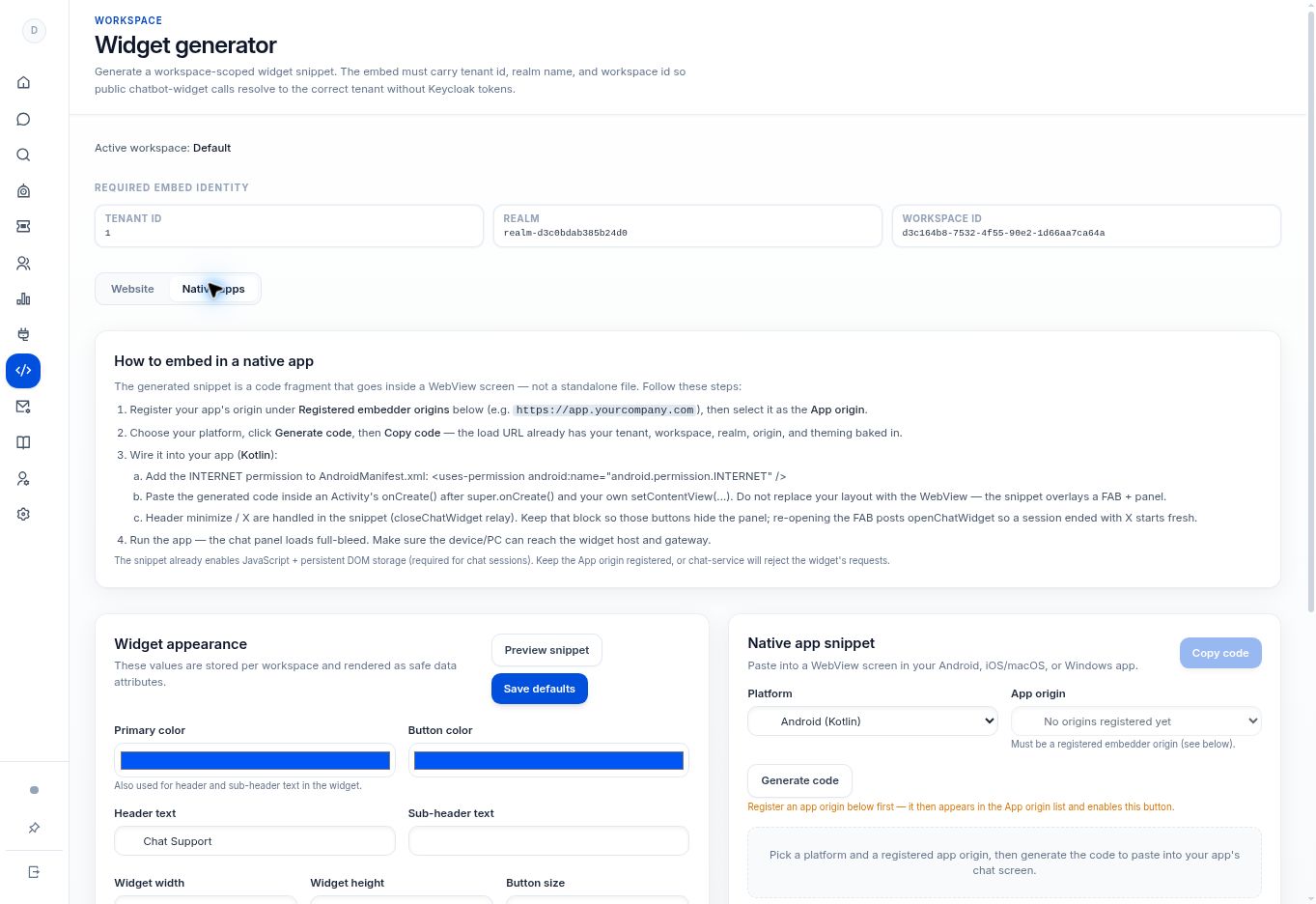
Step by step
- Open Widget generator → Native apps. Register the app origin if it is not already available.
- Choose iOS / macOS (Swift) or Windows (C#) from Platform.
- Select the intended App origin, then select Generate code and Copy code.
- Have your platform developer place the fragment into the app’s WebView screen and preserve the generated JavaScript, session-storage, and close/open behavior.
- Test on the target device or PC, including network access, opening chat, minimizing or closing, and reopening.
What to check
The target platform uses code generated for its own language and workspace identity. Do not install an SDK or package name that the platform has not supplied.
Need to troubleshoot?
The generator cannot produce code
Check registered-origin availability and the selected platform.
A platform-specific build error occurs
Keep the exact compiler message and generated fragment version for your developer or support investigation. Do not paste credentials into a public help request.