
Use the generated Kotlin fragment inside your activity after its existing layout setup. Preserve the chat overlay and open/close handlers, and test the result on a device.
Before you begin
Use the Kotlin fragment generated for your own workspace and registered app origin. Have your Android developer review it against your app’s layout and lifecycle.
Step by step
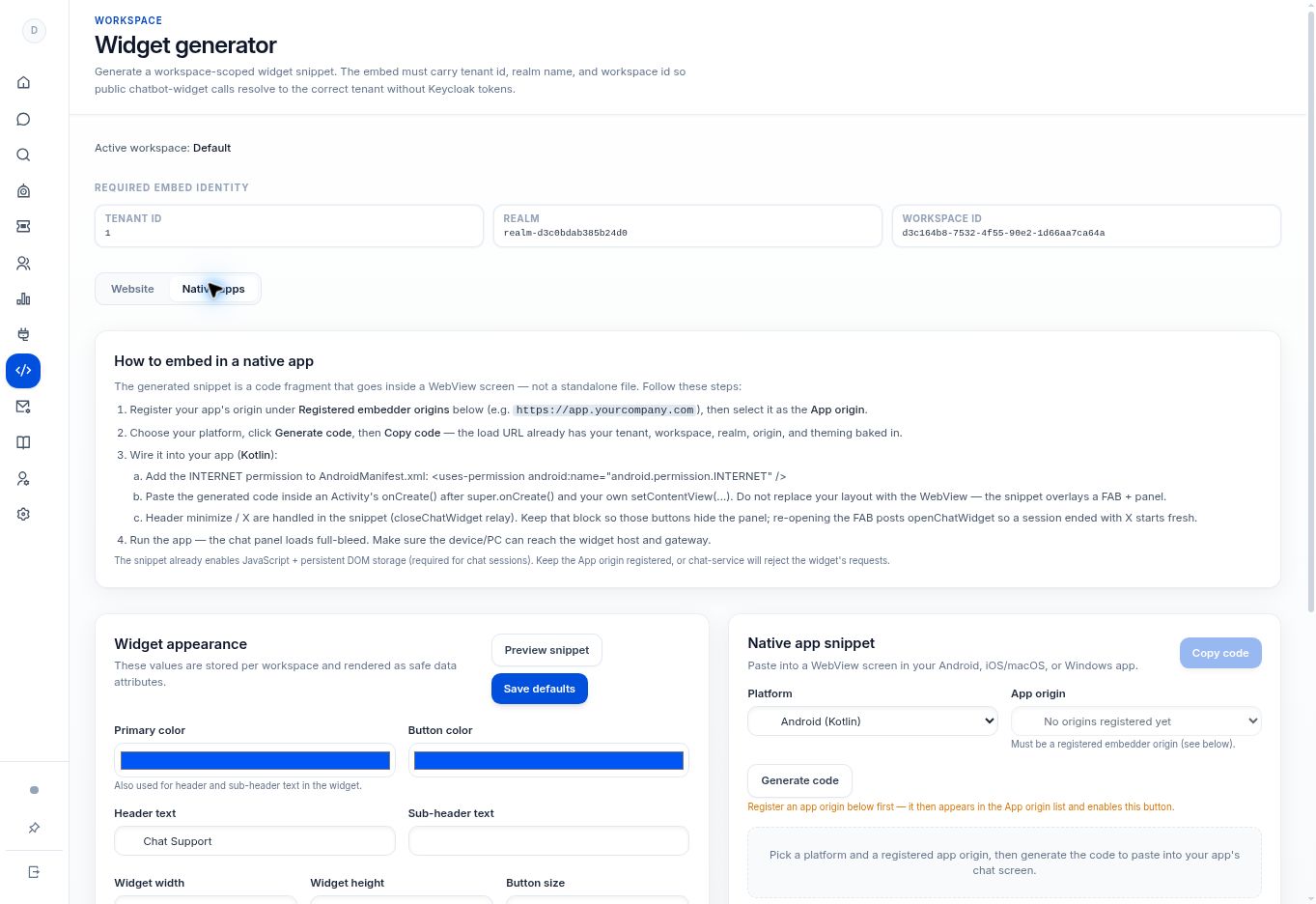
- In Widget generator → Native apps, choose Android (Kotlin), select the app origin, and generate the code.
- Add the Android internet permission to the manifest as shown in the generator:
<uses-permission android:name="android.permission.INTERNET" />. - Place the generated code inside the activity’s
onCreate(), aftersuper.onCreate()and your existingsetContentView(...). - Keep your app layout. The snippet overlays a floating action button and panel; it should not replace your entire screen with a WebView.
- Keep the generated
closeChatWidgetandopenChatWidgetrelay behavior. Test minimize, close, and reopening after a session is ended.
What to check
Your original activity remains intact and the chat overlay opens and closes correctly. JavaScript and persistent DOM storage are enabled by the generated fragment.
Need to troubleshoot?
The chat replaces my screen
Review where the fragment was placed. Do not replace your layout with only a WebView.
Reopening behaves incorrectly
Check that the generated open/close message handling was preserved rather than shortened during integration.