
Use Widget generator to adjust the widget’s colors, labels, size, and display settings. Preview the result, save the defaults, and regenerate the snippet when needed.
Before you begin
Open the correct workspace. Appearance values are workspace-scoped, and changing a generated snippet is not the same as updating deployed website code.
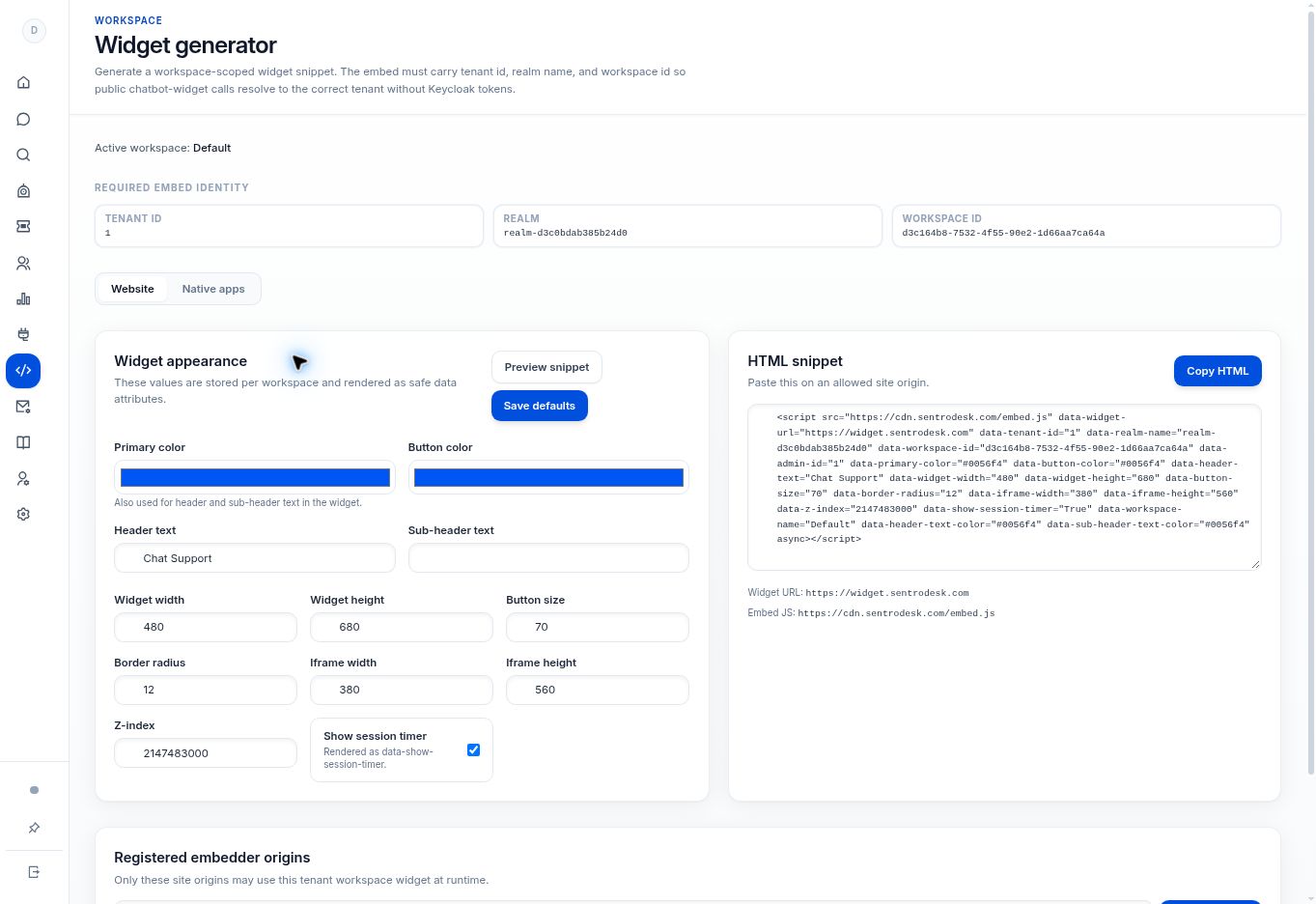
Step by step
- Open Widget generator and find Widget appearance.
- Set Primary color, Button color, Header text, and Sub-header text. The UI notes that primary color is also used for header and sub-header text.
- Review widget and iframe width/height, button size, border radius, and z-index. Test that the panel fits the smallest intended screen.
- Choose whether to show the session timer. Use Preview snippet to inspect the generated result.
- Select Save defaults to persist the settings. Copy and deploy an updated snippet where your integration requires it.
What to check
The deployed widget uses the intended colors, labels, and dimensions without obscuring the site’s important controls.
Need to troubleshoot?
The website still shows an old style
Check whether your site is loading the latest generated embed and whether a website cache is serving old code.
The panel is hidden behind another element
Review the z-index with your site developer, then test interactions rather than choosing a larger number without checking the page.