
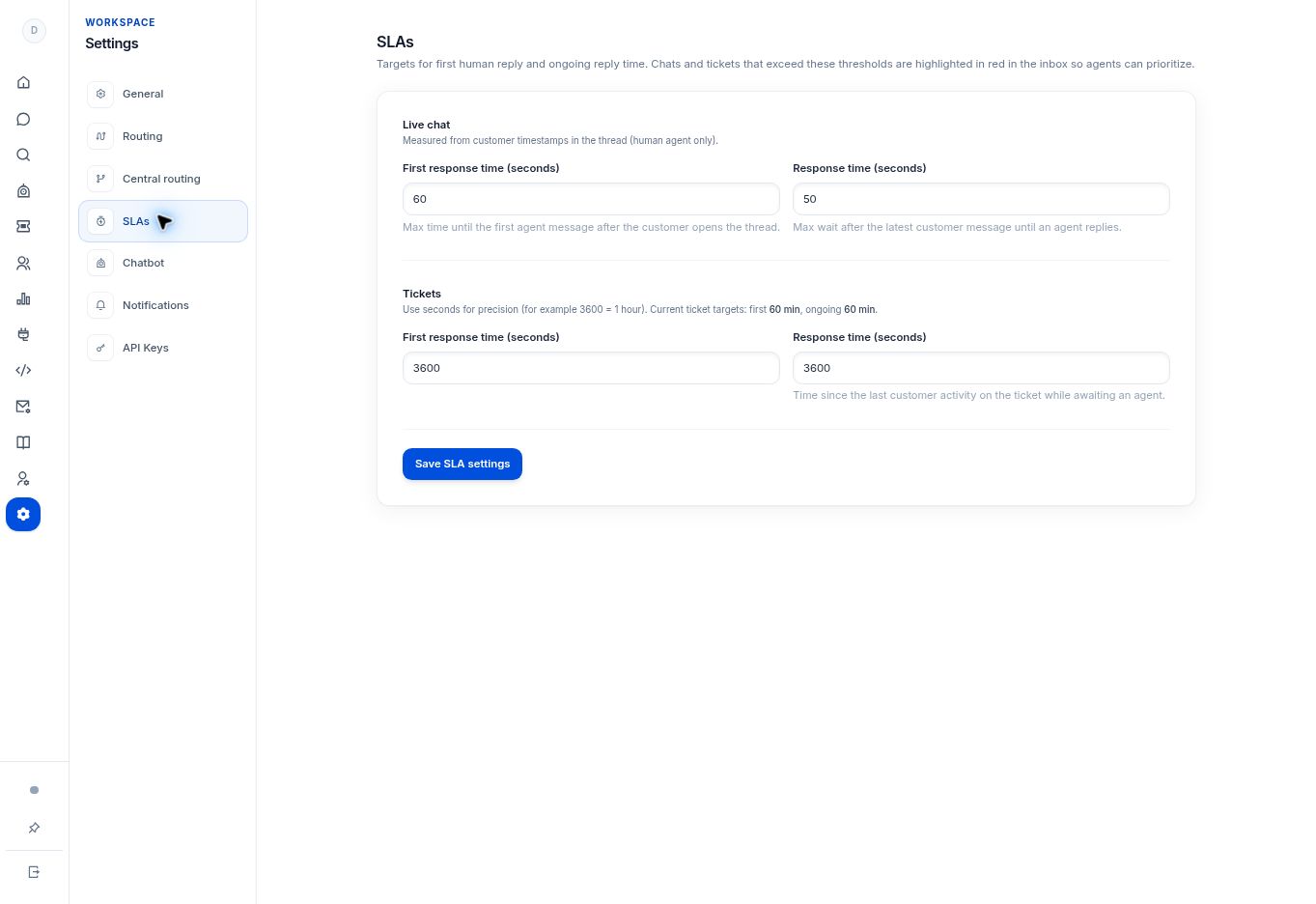
Set first and ongoing response targets in Settings → SLAs. Values are entered in seconds; 3600 seconds is one hour. Review chat and ticket targets separately before saving.
Before you begin
You need Settings access and agreed service targets. Values in this screen are entered in seconds.
Step by step
- Open Settings → SLAs.
- Under Live chat, review First response time (seconds) and Response time (seconds). These are based on customer timestamps and human-agent replies.
- Under Tickets, set the first and ongoing response targets. For example, 3600 seconds equals one hour.
- Select Save SLA settings after checking the units and business expectation.
- Use red SLA indicators and SLA BREACH filters in the queues, and the SLA-risk cards in Analytics, to prioritize eligible work.
What to check
Your team can interpret a breach against an agreed target. A first-response target and an ongoing-response target describe different waits.
Need to troubleshoot?
The target is much shorter than intended
Check that minutes were converted to seconds before saving.
A bot response does not clear a chat target
Chat targets measure human-agent responses.