
Create a page in Docs Site with a title, slug, and HTML content. Save a draft for review, then check both page publication and the site’s overall publishing status before sharing it.
Before you begin
You need Docs Site access. This built-in publishing tool is separate from the WordPress help center you are reading.
Step by step
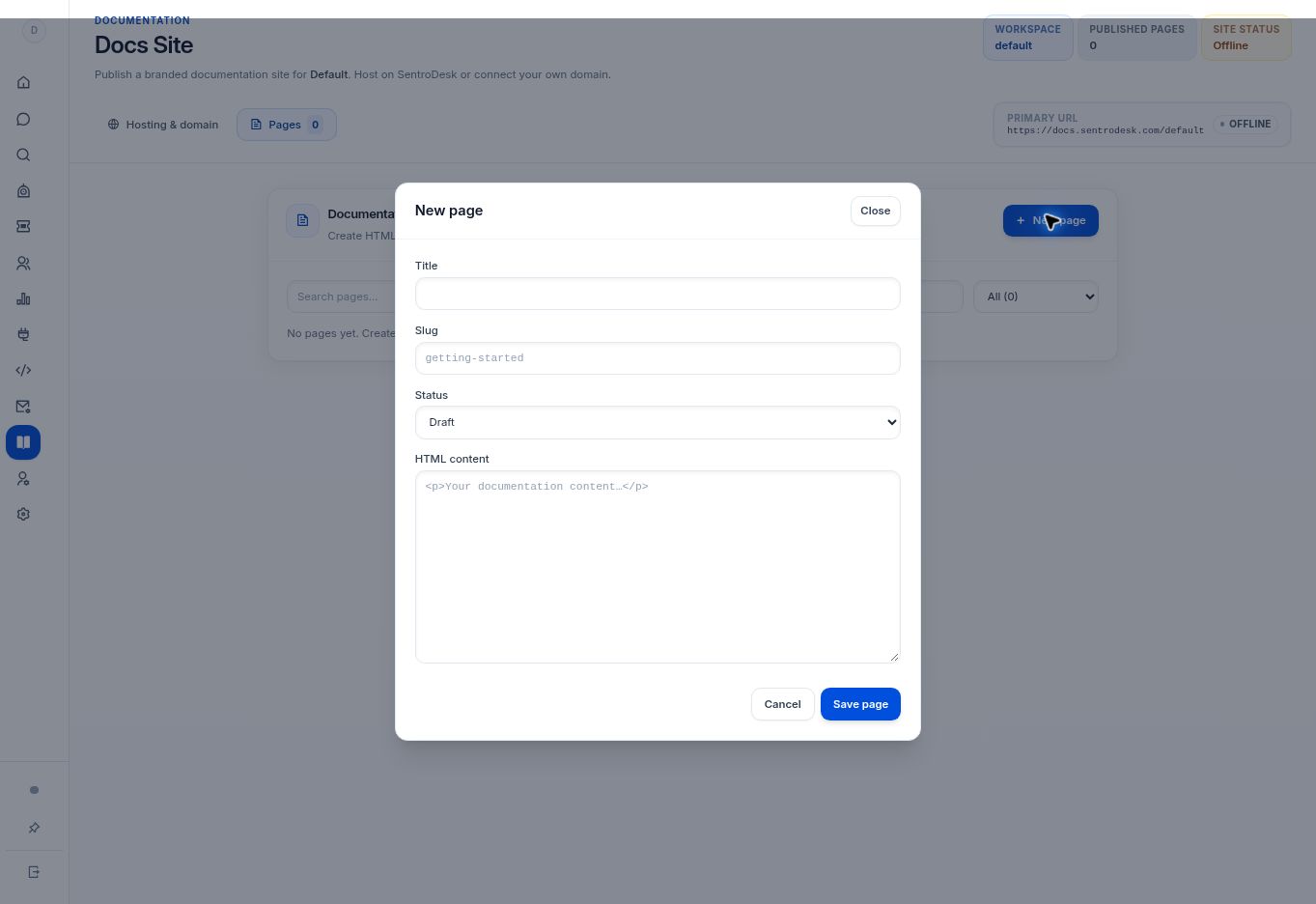
- Open Docs Site and select New page.
- Enter a descriptive title and a stable slug. The slug becomes part of the page address.
- Keep the status as Draft while you write. Enter the page body in the HTML content editor, using clear headings, descriptive links, and useful image alternatives.
- Select Save page. Use the page list filters to find drafts or published pages.
- Review the page, then change its status to Published when ready. Confirm that the site hosting configuration is ready and the site publish switch is enabled before sharing the public address.
What to check
The saved page appears in the correct list. A draft does not appear publicly, and a published page still depends on the overall site being online.
Need to troubleshoot?
My page is not public
Check both page status and the site’s publish switch, then confirm the hosting address.
I want to edit this WordPress help center
Use WordPress → Guides. The SentroDesk Docs Site editor manages a different publishing destination.