
Enter your native Docs Site hostname, add the displayed DNS records, and complete domain and SSL verification before publishing. A WordPress subdomain needs its WordPress host’s instructions instead.
Before you begin
You need DNS access, Docs Site access, and an unused documentation hostname. This procedure is for the native Docs Site, not a separate WordPress site.
Step by step
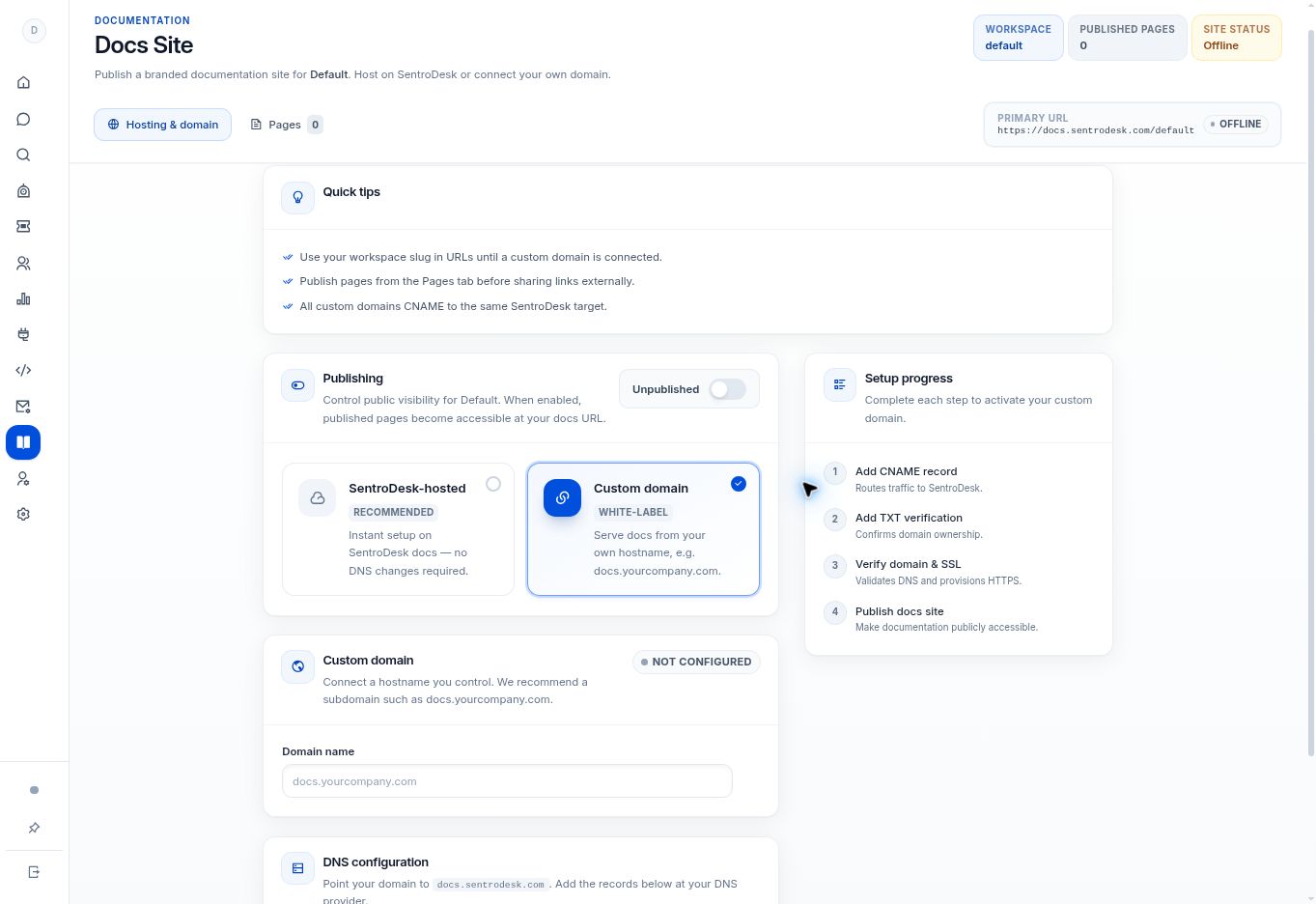
- Open Docs Site → Custom domain and enter the hostname you intend to use.
- Follow the DNS instructions shown for that hostname. The interface specifies a CNAME target of
docs.sentrodesk.comand a TXT ownership record; copy the exact ownership value generated for your configuration. - Allow time for DNS propagation. The interface notes that this can take up to 24 hours.
- Use Verify domain & SSL after the records are in place. Resolve any verification errors before publishing.
- Publish only when verification succeeds and the intended pages are ready. Check HTTPS and the public pages from a signed-out browser.
What to check
The verified domain serves the intended native documentation site over HTTPS.
Need to troubleshoot?
Domain verification fails
Compare the hostname and TXT value with the displayed instructions. Check for conflicting records with your DNS provider.
My WordPress site is elsewhere
Use your WordPress host’s DNS and SSL instructions instead. These native Docs Site records will not connect a WordPress installation.