
Start by confirming your workspace, inviting the right agents, choosing your support mode, and installing the widget. Then test a customer conversation before launch.
Before you begin
Have your SentroDesk sign-in, a website or app to test, and permission to manage the workspace. Some settings require an administrator.
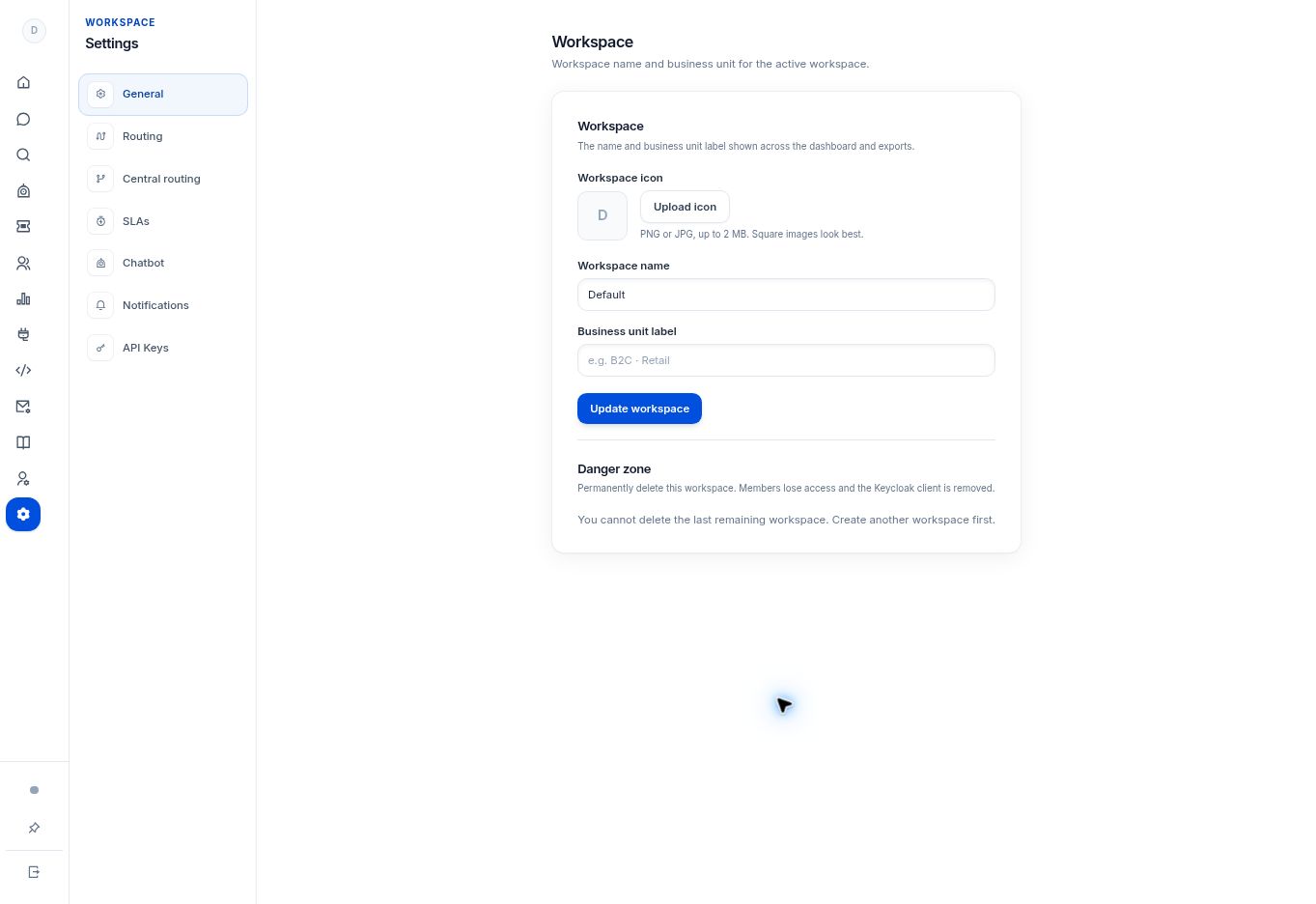
Step by step
- Sign in to the platform. Use the workspace control at the top of the navigation rail to check which workspace is active.
- Open Settings → General. Confirm the workspace name and business unit label. If you change them, select Update workspace.
- Open Users to review your agents. Invite only the people who need access, using the appropriate workspace role.
- In Settings → Chatbot → Automation, review the enabled bot, human-agent, and ticket options. Available modes are controlled by your platform operator.
- Use Widget generator to prepare the website or native-app entry point. Register the correct origin before testing the embed.
- Test a routine question, a request for a person, and any follow-up your selected mode supports. Review the session in Inbox or Bot Messages.
What to check
The test reaches the intended workspace, the customer can open support, and the team knows which screen to use for the next reply.
Need to troubleshoot?
The conversation reaches the wrong team
Check the active workspace and regenerate the snippet from that workspace. Do not reuse another workspace’s identity values.
A setting is missing
Check your workspace role and plan, then ask the administrator to confirm access.