
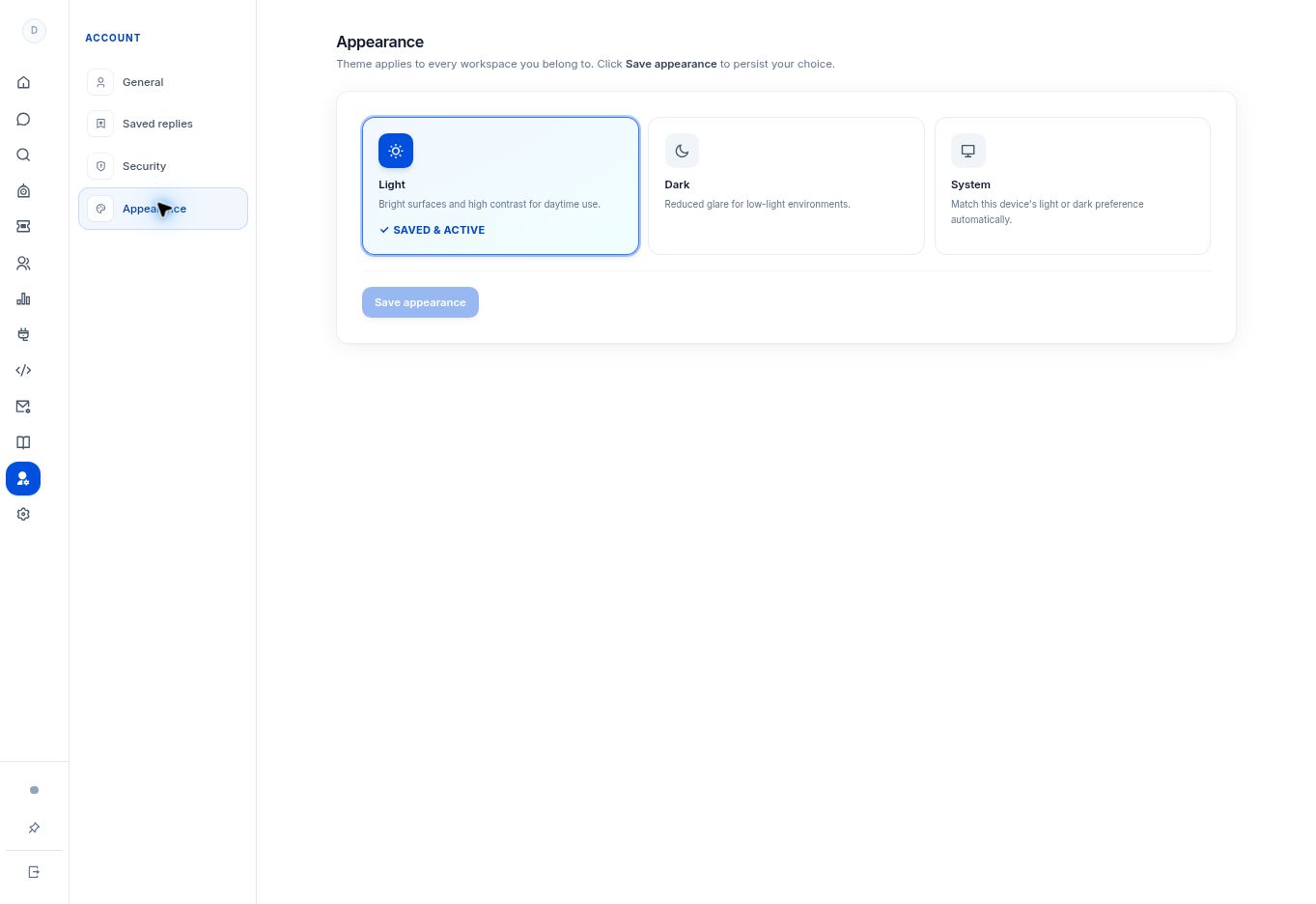
Select Light, Dark, or System in Personal settings → Appearance, then save the choice. System follows your device preference across the workspaces you belong to.
Before you begin
Open Personal settings while signed in to your own account.
Step by step
- Choose Personal settings → Appearance.
- Select Light for bright surfaces, Dark for reduced glare, or System to follow the device preference.
- Select Save appearance to persist the choice.
- Check the saved/active indication and review a working screen such as Inbox to confirm the result.
What to check
The selected theme is saved for the workspaces you belong to. Selecting a card without saving is not the same as persisting the preference.
Need to troubleshoot?
Save appearance is disabled
The current choice may already be saved. Check the Saved & Active indication.
System changes with my device
That is the intended behavior of System. Choose a fixed Light or Dark setting if you do not want it to follow the device.