
Choose email, desktop push, and sound settings in Settings → Notifications, then save. Browser and operating-system permissions also affect desktop notifications.
Before you begin
You need access to Settings. Browser notification permission is separate from the workspace’s notification preference.
Step by step
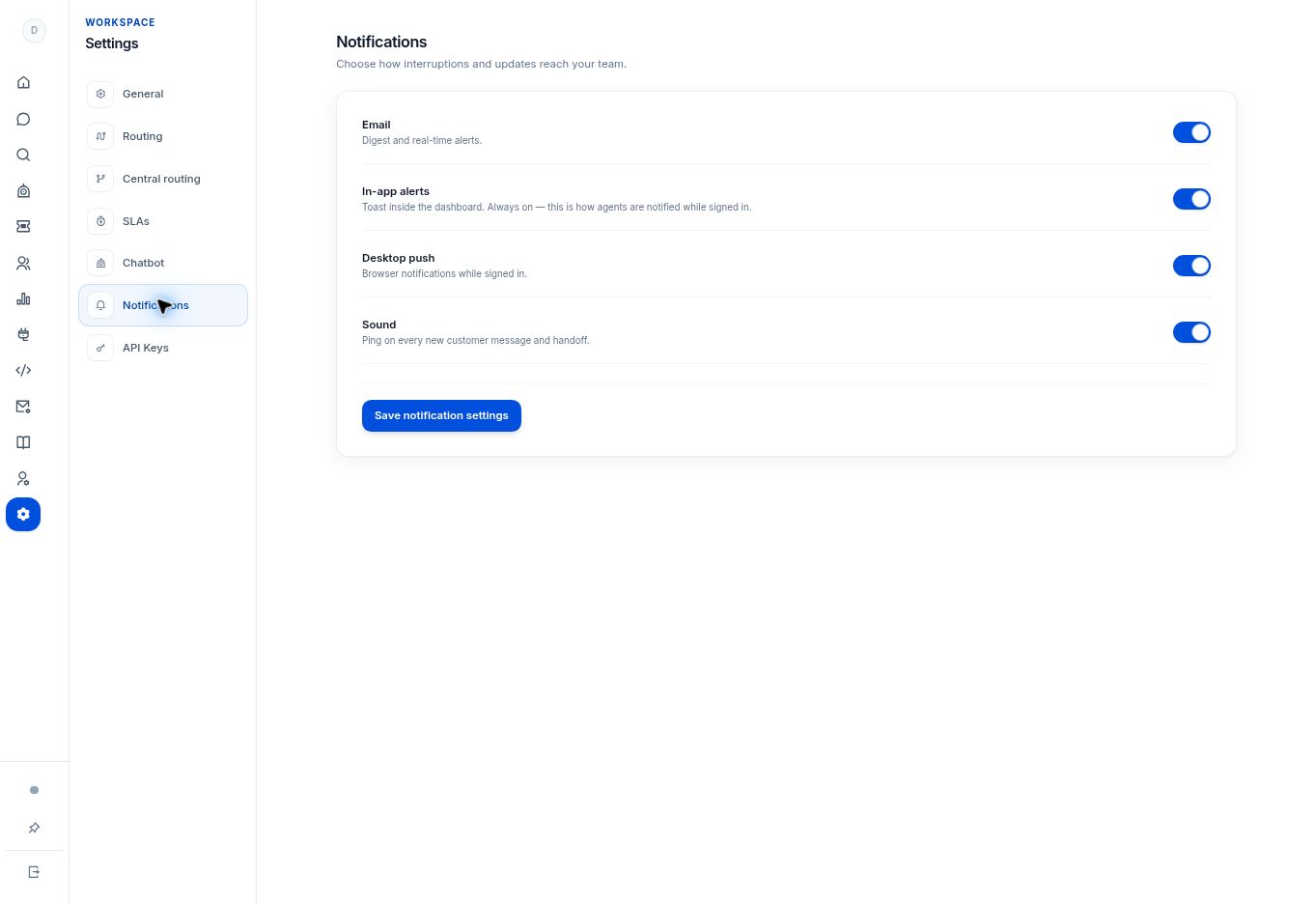
- Open Settings → Notifications.
- Review Email for digests and real-time alerts.
- Review Desktop push for browser notifications while signed in, and Sound for new customer messages and handoffs.
- Note that In-app alerts are shown as always on in the interface.
- Select Save notification settings. Test the intended channel with a genuine workflow, using approved test recipients when needed.
What to check
The saved workspace preferences match your team’s interruption policy. Notification settings are not a substitute for configuring the email provider.
Need to troubleshoot?
Desktop notifications do not appear
Check the browser’s site permission and operating-system notification preferences as well as this setting.
Emails do not arrive
Review the Email service configuration and sender identity with the administrator.