
Use Settings → General for workspace details and Personal settings for your own profile. Save changes in the correct area and confirm the active workspace first.
Before you begin
Workspace changes need the appropriate Settings permission. Personal profile settings apply to your own account context.
Step by step
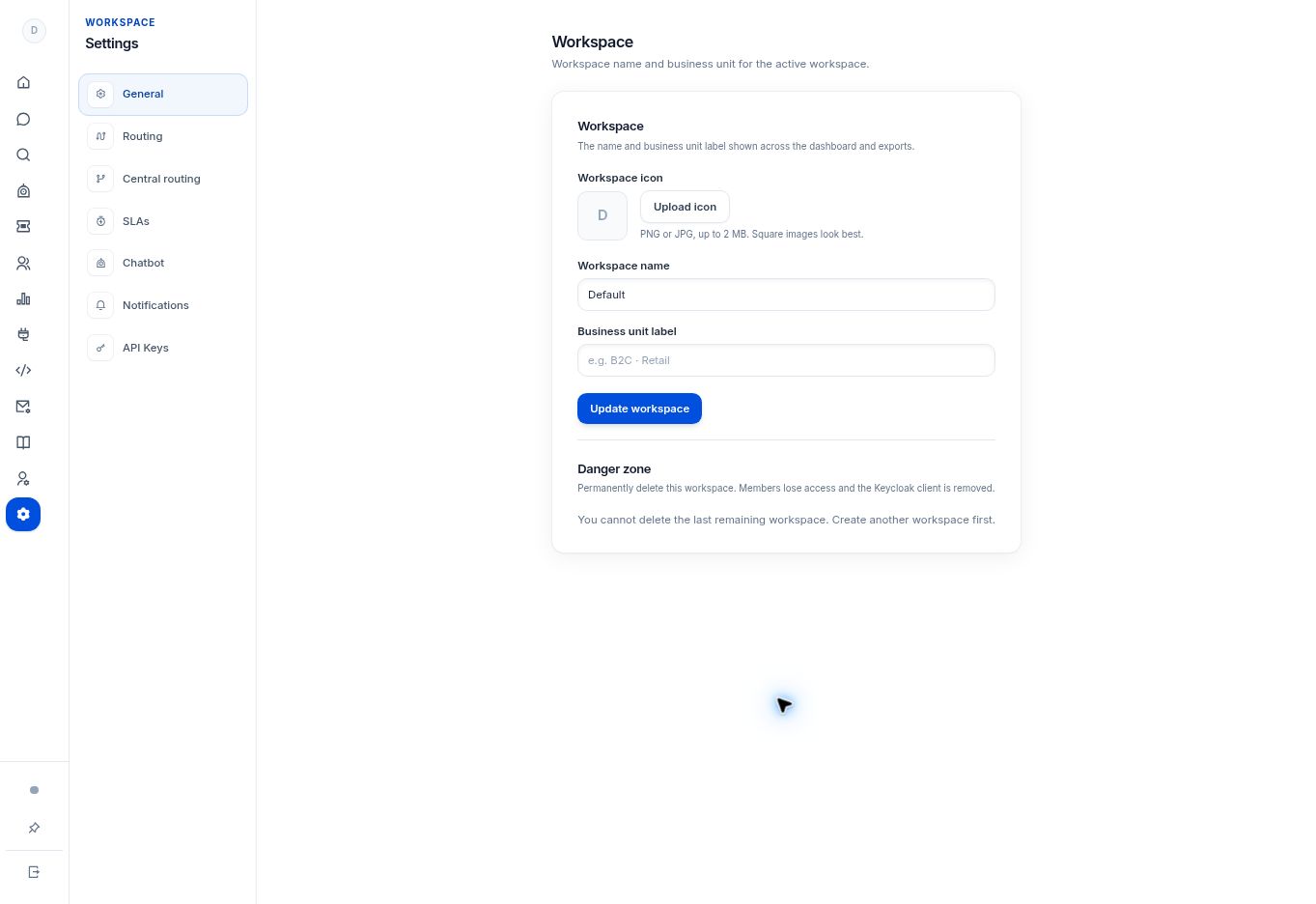
- For the workspace, open Settings → General. Review Workspace name and Business unit label.
- Use Upload icon if needed. The UI accepts PNG or JPG up to 2 MB and recommends a square image.
- Select Update workspace after checking the active workspace.
- For your own name, open Personal settings → General, edit Display name, and select Save profile.
- Email changes are handled through your identity provider and require re-authentication.
What to check
Teammates see the intended display name and workspace identity. Changes are made at the correct workspace or personal level.
Need to troubleshoot?
I edited the wrong workspace
Switch to the intended workspace before applying a correction.
The email field cannot be changed here
Follow your identity-provider account process or contact your administrator.