
Use Inbox status filters for open or closed conversations. Use views and folders to narrow the queue, and the SLA BREACH filter to find requests past their response target.
Before you begin
Open Inbox or Bot Messages in the correct workspace.
Step by step
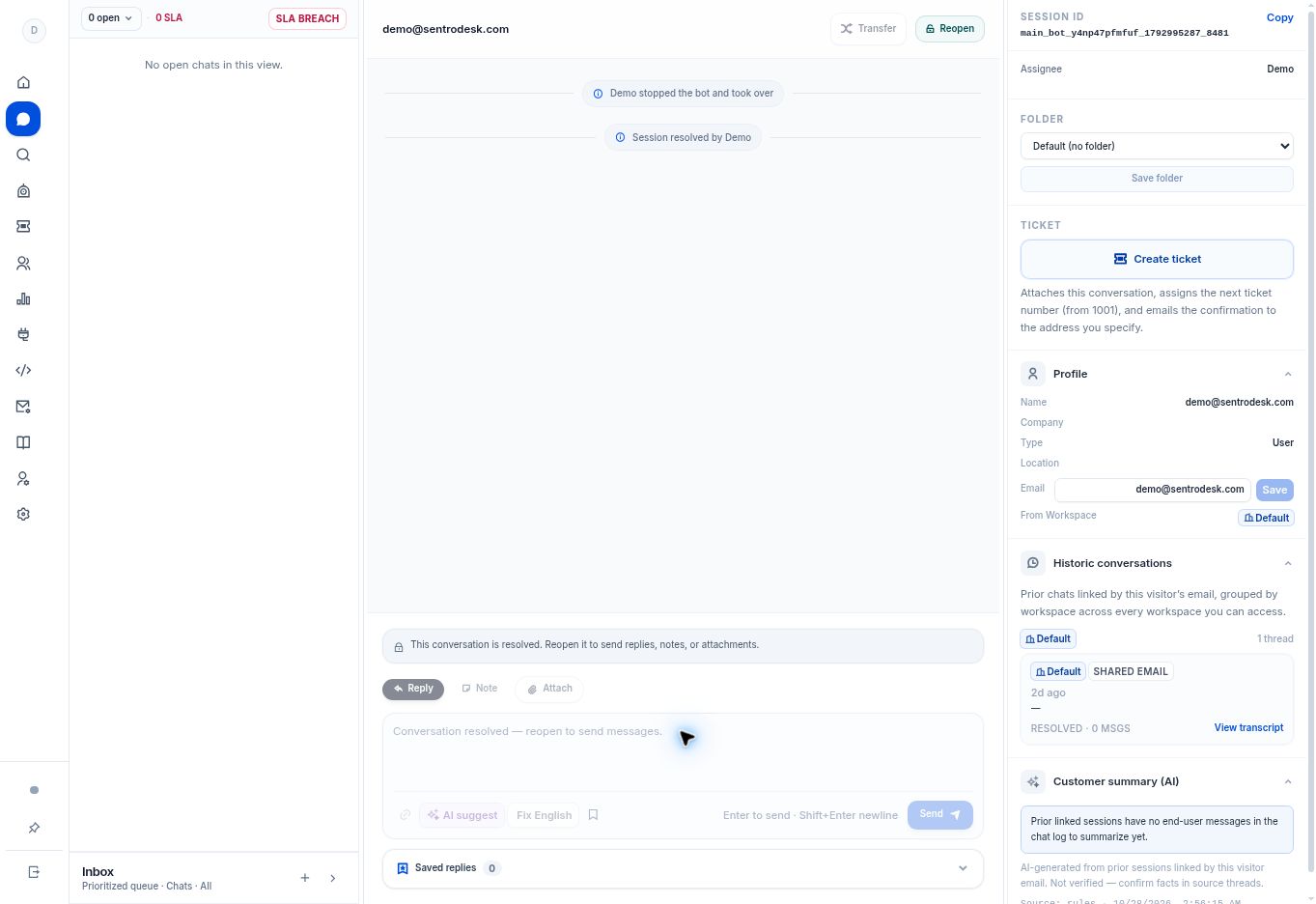
- Open the conversation status control near the top of the list. It shows the current count and status.
- Select Open, Closed, or All. Closed history can exist even when the Open count is zero.
- In Inbox, select Show views & folders. Use All, Unassigned, or a team inbox folder to narrow the queue.
- Use SLA BREACH when you specifically need threads that exceed the configured SLA targets. Clear the filter when reviewing the full queue.
What to check
The queue reflects the status, assignment, folder, and SLA filters you intended to use.
Need to troubleshoot?
A thread disappears after I finish it
Look in Closed or All. A completed conversation no longer belongs in an open-only view.
The queue is unexpectedly empty
Check each active filter, the workspace, and your access before concluding that data is missing.