
Create a saved reply from the inbox composer, set its shortcut and visibility, and reuse it when responding. Check merge tags and customer details before sending.
Before you begin
You need Inbox access. Review the message for customer-specific information before saving it as reusable content.
Step by step
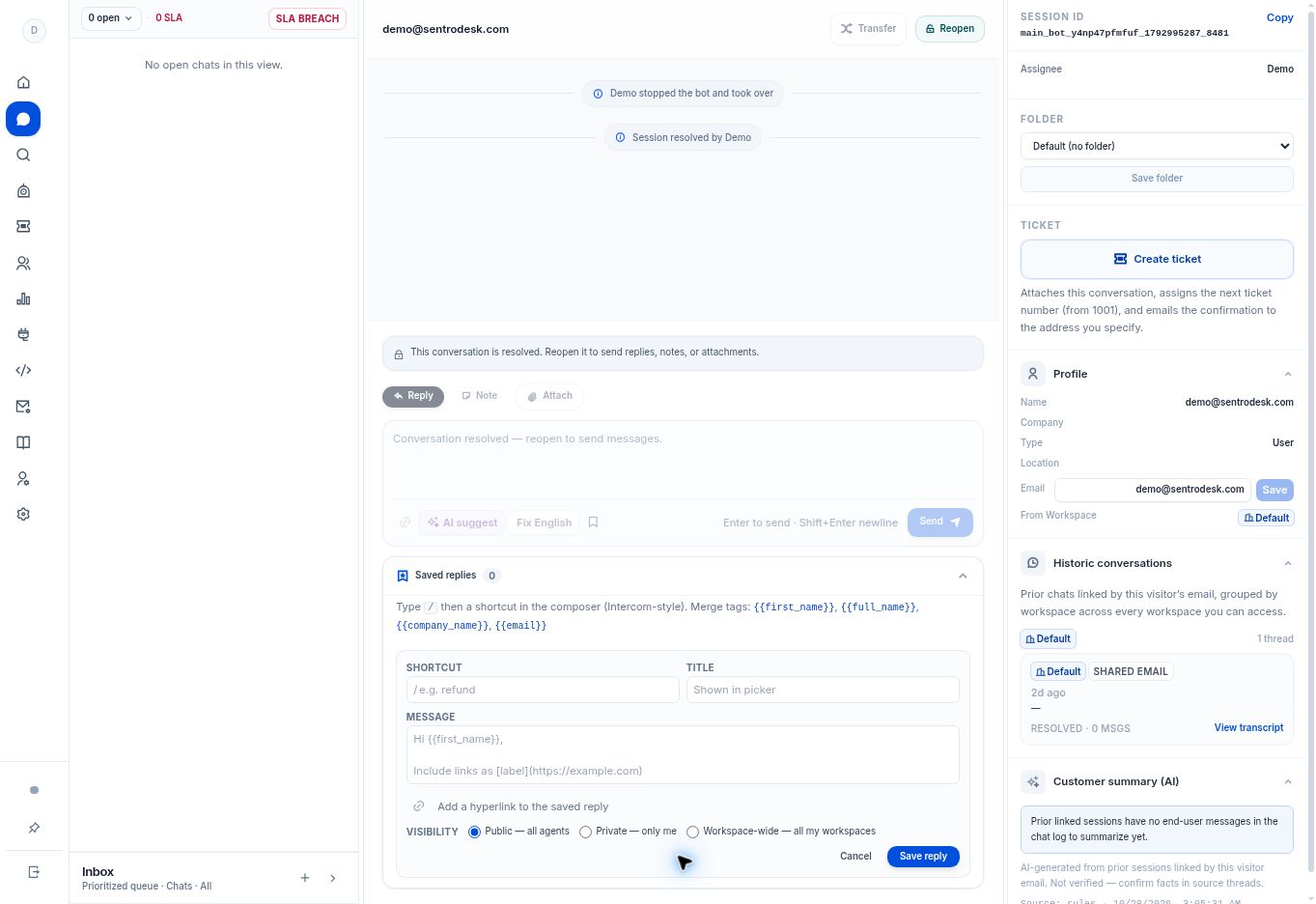
- Expand Saved replies under the inbox composer and select Add saved reply.
- Enter a Shortcut, Title, and Message. Choose a short, memorable shortcut and a title that explains when to use the reply.
- Choose Public — all agents, Private — only me, or Workspace-wide — all my workspaces according to the audience you intend.
- Select Save reply. In the composer, type / followed by the shortcut to use a saved response.
- Before sending, check the inserted text and any merge tags. Supported tags shown in the app include
{{first_name}},{{full_name}},{{company_name}}, and{{email}}.
What to check
The saved response is available with the intended visibility. Manage replies you created under Personal settings → Saved replies.
Need to troubleshoot?
A tag does not read naturally
Check the customer profile and replace or rephrase missing information before sending.
A colleague cannot see my reply
Check whether you saved it as Private and whether the colleague is in the intended workspace.