
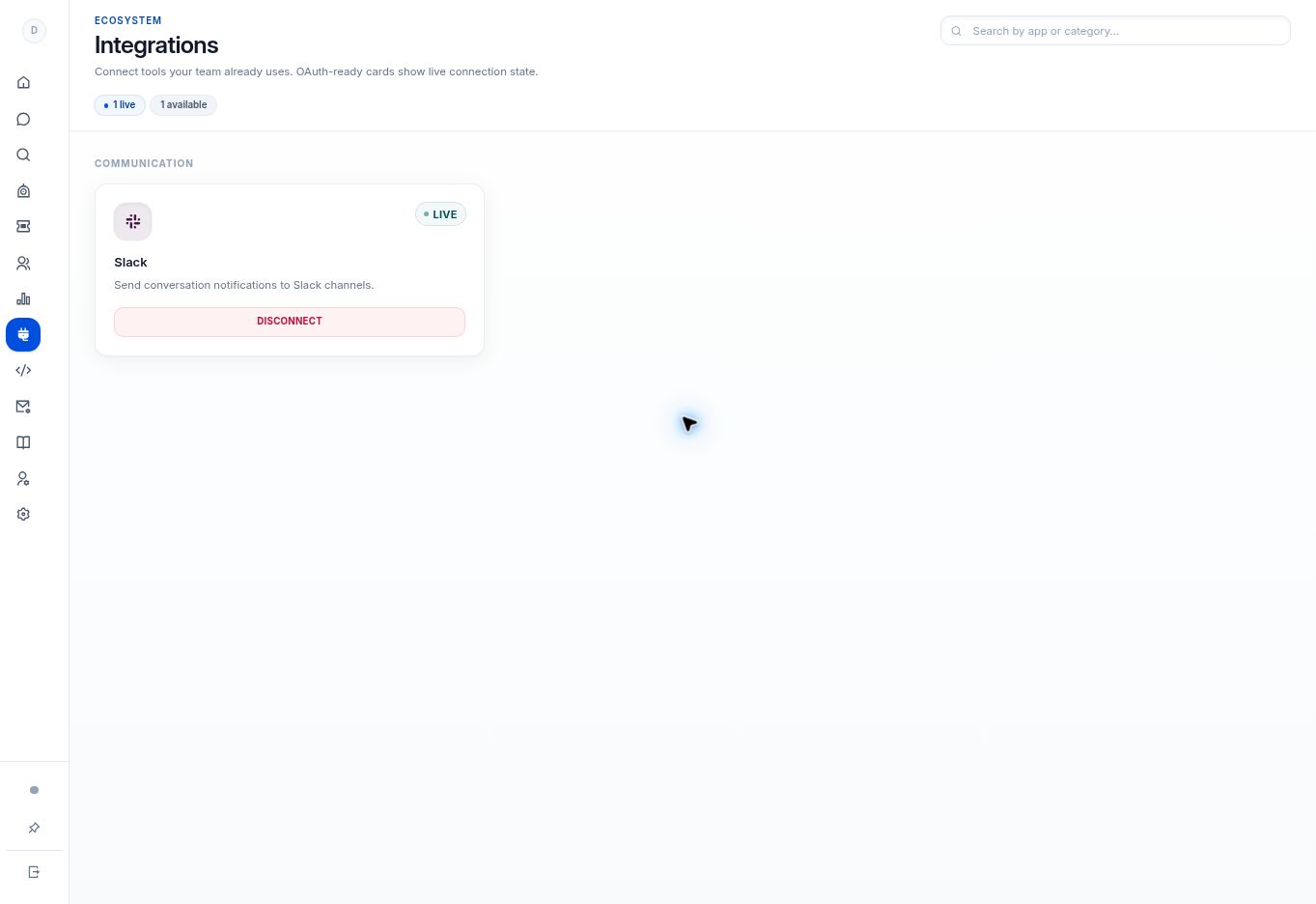
Open Integrations and locate Slack to review its connection status. Confirm notifications reach the intended destination with a controlled conversation; do not disconnect a live connection just to inspect setup.
Before you begin
You need access to Integrations. Connecting or disconnecting a service can affect your team’s notifications.
Step by step
- Open Integrations. Use the catalog search if needed to locate Slack.
- Review its connection status. A connected workspace shows its live status and an option to disconnect.
- If your workspace offers a connection action, have an authorized Slack administrator complete the displayed setup. Confirm the destination and requested permissions during that flow.
- Use a controlled test conversation to check that the intended team receives the notification. Avoid placing sensitive customer content in a broadly accessible channel.
What to check
Your team knows whether the workspace is connected and where notifications should be checked. The connection and Slack authorization flow may differ from the already-connected example.
Need to troubleshoot?
No notification appears
Confirm the connection is active and ask your Slack administrator to check the destination and app permissions.
I only see Disconnect
The workspace is already connected. Do not disconnect it simply to inspect setup.