
Choose Reply for a customer-facing response or Note for an internal note. Use the composer’s attachment and drafting tools in an open conversation, and review the content before sending.
Before you begin
Select an open conversation in Inbox. Reply, Note, and attachment actions are disabled on resolved conversations.
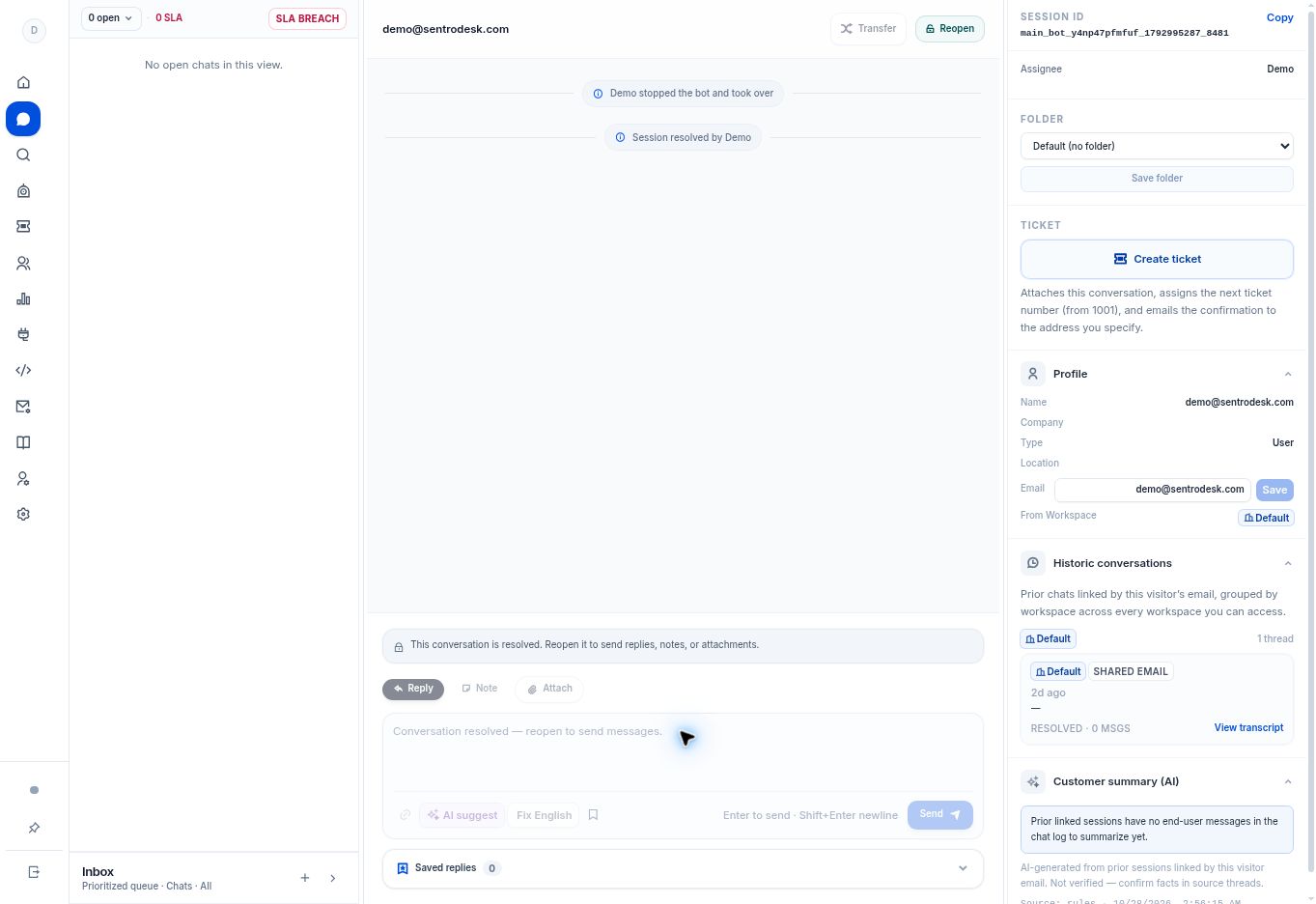
Step by step
- Choose Note when the message is for internal context. Switch back to Reply before writing to the customer.
- Use Attach file to choose an attachment. The composer also indicates that an image can be pasted with Ctrl+V.
- Use Add link when you need a hyperlink in the draft. Confirm that the link points to the intended destination.
- If available in your workspace, AI suggest uses conversation context and Fix English improves the draft. Review the result for accuracy, tone, and private information.
- Check the current mode and recipient before selecting Send.
What to check
The correct content is placed in the intended mode. An AI-assisted suggestion is a draft to review, not a verified customer fact.
Need to troubleshoot?
The actions are disabled
Confirm that the conversation is open and that your role permits the action.
An attachment does not work
Check the error shown in the app and your deployment’s file restrictions. Do not assume a file type or size limit that is not shown.