
Open the conversation in Inbox, review its history, choose Reply, and send your response. Reopen a resolved conversation before using the composer.
Before you begin
You need access to Inbox and an open conversation. A resolved conversation disables the composer until it is reopened.
Step by step
- Open Inbox and select the relevant conversation. Check the customer and assignee before replying.
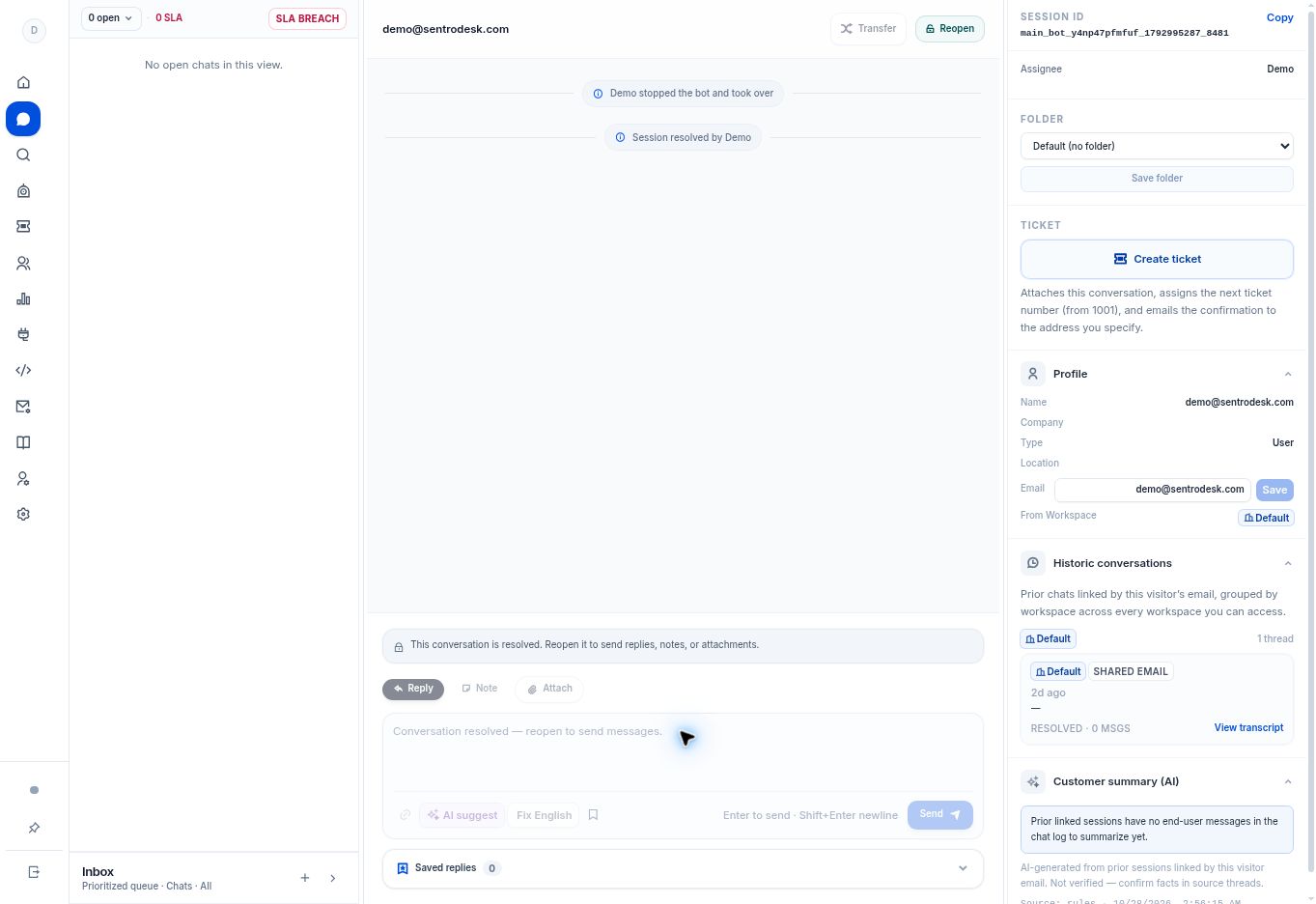
- Review the earlier exchange in the center pane and the customer details on the right. Use the open/closed filter if the thread is not visible.
- Choose Reply in the composer. Write the customer-facing response and check links or attachments before sending.
- Select Send, or use Enter as shown in the composer. Use Shift+Enter for a new line.
- If the thread is resolved and you genuinely need to continue it, use Reopen first. Reopening changes the conversation state.
What to check
The customer-facing message appears in the intended open conversation. Keep internal discussion in Note mode rather than Reply mode.
Need to troubleshoot?
The composer is disabled
Check whether the conversation is resolved. Reopen it before adding replies, notes, or attachments.
I cannot find the thread
Switch the status filter to Closed or All, or use Search.