
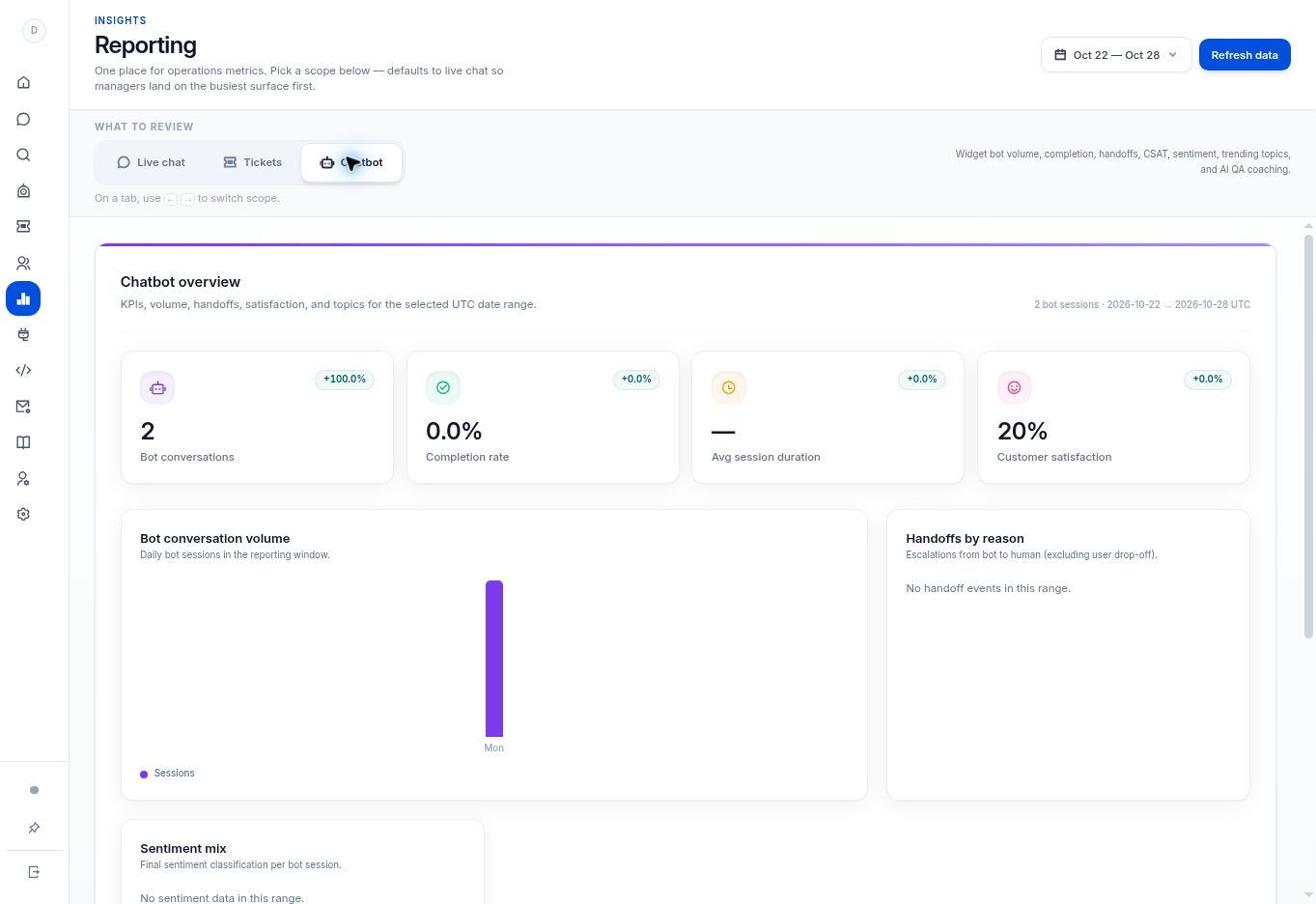
Open Analytics, choose Live chat, Tickets, or Chatbot, and set the UTC reporting period. Read each metric’s caption to distinguish a current snapshot from activity within the selected range.
Before you begin
You need Analytics access. The reporting interface uses UTC for the displayed date range.
Step by step
- Open Analytics. The page is titled Reporting.
- Use the date-range control to select the period you want to investigate. Check UTC when comparing it with an event recorded in another time zone.
- Choose Live chat, Tickets, or Chatbot under What to review.
- Use Refresh data when you need an updated view. Wait for the refresh to finish before comparing values.
- Read each metric’s explanation. Some cards describe the selected range while others explicitly describe a snapshot of the workspace.
What to check
You compare the right scope and time window. The tabs support left/right arrow navigation when focused.
Need to troubleshoot?
Two numbers appear inconsistent
Check whether one is a snapshot and the other is range-based, and confirm both use the same workspace and time zone.
A report is empty
Check scope, date range, and whether the activity needed for that metric has occurred.