
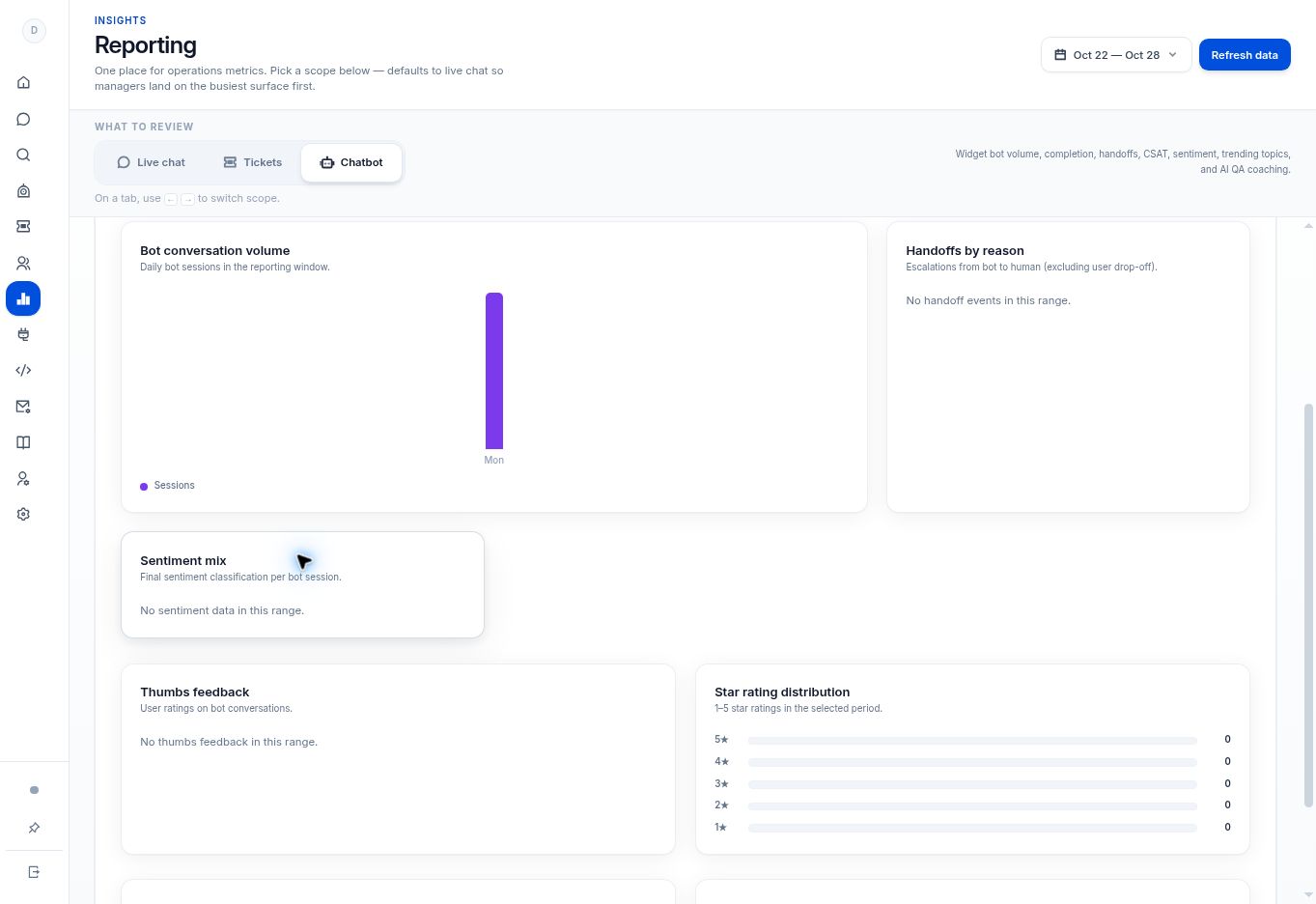
On Growth or Enterprise, open Analytics → Chatbot and review Sentiment mix for the selected period. It describes a final classification per bot session; investigate the source messages before acting.
Before you begin
Sentiment Analysis is included in Growth and Enterprise. The screen exposes Sentiment mix in Analytics → Chatbot.
Step by step
- Open Analytics → Chatbot and choose the relevant UTC date range.
- Find Sentiment mix. The caption describes a final sentiment classification per bot session.
- Check the amount of available data. If the panel says No sentiment data in this range, broaden the investigation or check whether eligible sessions were processed.
- Review associated customer feedback and relevant sessions in Bot Messages. Look for the request, the answer, and what remained unresolved.
- Choose a support action or content improvement based on that evidence. Do not substitute a sentiment label for reading the conversation.
What to check
A sentiment trend leads to a specific review decision. This guide does not assume an unverified numeric sentiment scale or a scoring rubric.
Need to troubleshoot?
The panel is empty
Check the workspace, date range, feature access, and whether sentiment processing has produced results.
A classification seems wrong
Review the source exchange and document the example for your team rather than automatically judging the customer or agent.