
Use Create ticket from a conversation, enter the subject and confirmation email, and check the details before submitting. The ticket links back to the conversation.
Before you begin
Select the correct conversation. Confirm the customer email before creating the ticket because this action sends an email confirmation.
Step by step
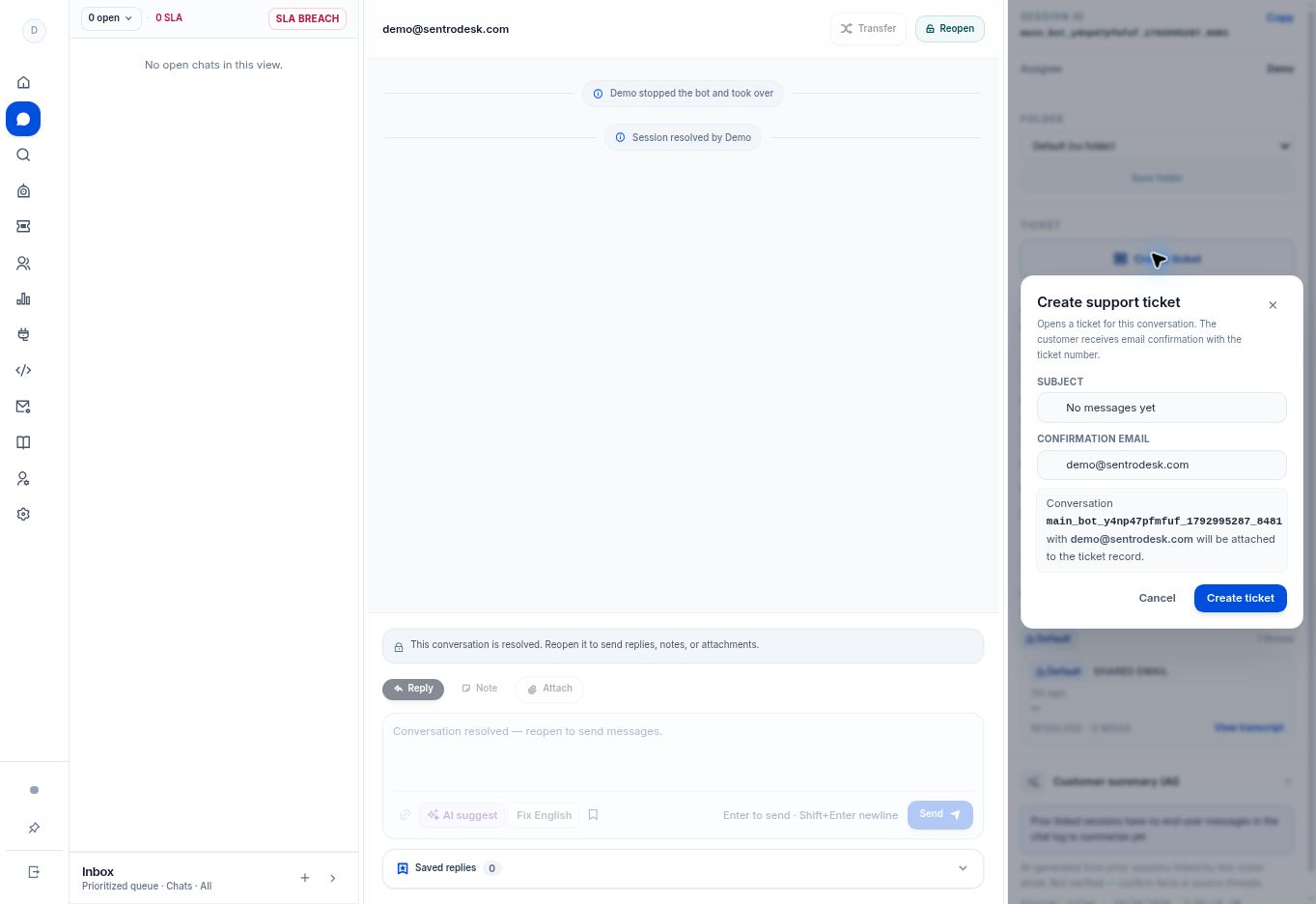
- In the customer-details panel, find Ticket and select Create ticket.
- In Create support ticket, enter a clear Subject. Replace an unhelpful suggested subject such as “No messages yet” with a description of the actual request.
- Check Confirmation email carefully. The conversation shown in the dialog will be attached to the ticket.
- Select Create ticket only after checking the subject, conversation, and recipient.
- Open Tickets to find the new record and confirm the conversation linkage.
What to check
The customer receives a confirmation with the assigned ticket number. The app states that ticket numbering starts from 1001; do not guess the next number yourself.
Need to troubleshoot?
The ticket is not visible
Refresh the queue, check the workspace and status filters, and inspect the error shown during creation before retrying.
The confirmation does not arrive
Verify the recipient and ask the administrator to check the workspace email service. Avoid creating duplicate tickets as a mail-delivery test.